How to setup a local coding agent on macOS
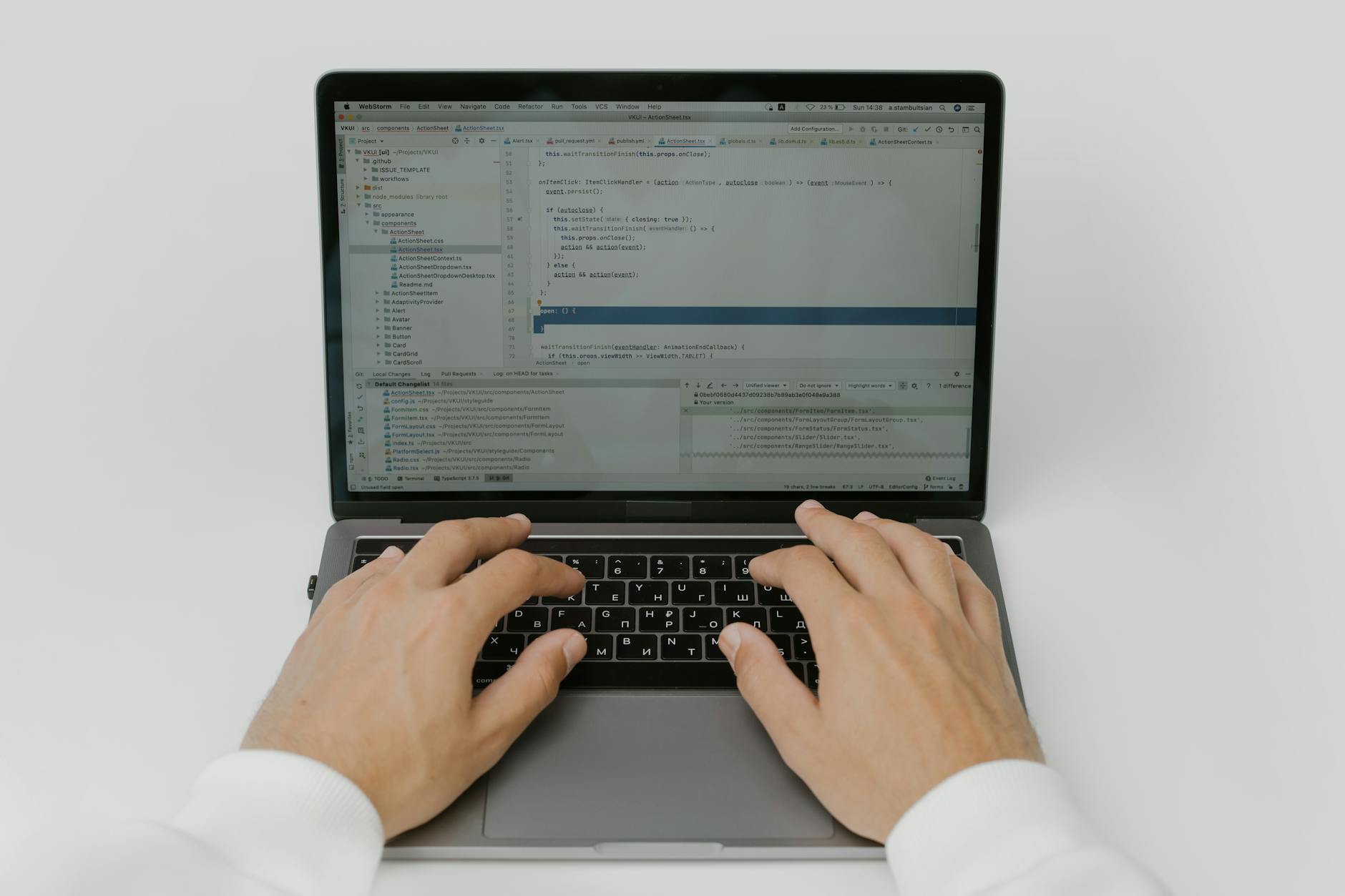
The world of finance is becoming increasingly data-driven. Staying ahead requires not just understanding financial principles, but also being able to efficiently process and analyze vast amounts of information. Traditionally, this meant expensive software, specialized skills, or relying on third-party services. But with the rise of Large Language Models (LLMs) and the ability to run them locally on your own machine, a new era of personalized financial analysis is here. This article will guide you through setting up a local coding agent on macOS, tailored for financial applications.
What is a Local Coding Agent?
Imagine having a dedicated assistant, proficient in coding, that can automate your financial tasks, analyze market data, and even help you backtest investment strategies. That’s essentially what a local coding agent is. Unlike cloud-based AI tools, a local agent runs directly on your macOS machine.
Here's why that's a game-changer for finance:
- Privacy: Your sensitive financial data never leaves your computer. This is crucial when dealing with personal investments, account details, and other confidential information.
- Cost-Effective: No recurring subscription fees. Once you've set up the agent, the computational cost is yours to manage (more on that later).
- Customization: You have full control over the code and the agent’s behavior. Tailor it precisely to your specific financial needs.
- Reliability: Not dependent on an internet connection or the uptime of a third-party service.
A local coding agent isn’t about replacing financial advisors. Instead, it’s a powerful tool to augment your existing knowledge and decision-making process. Think of it as a highly customizable, programmable spreadsheet on steroids.
Tools You'll Need: The macOS Setup
Setting up a local coding agent isn't as daunting as it sounds. Here's a breakdown of the tools we'll be using, along with considerations for performance:
- A Powerful Mac: This is arguably the most important factor. LLMs are resource-intensive. An Apple Silicon Mac (M1, M2, M3 chips) is highly recommended. The more RAM and VRAM (video RAM), the better. 16GB of RAM is a good starting point, but 32GB or more will significantly improve performance, especially with larger models. Look for a machine with a dedicated GPU if possible.
- Homebrew: A package manager for macOS. It simplifies the installation of many command-line tools. If you don't have it, install it from https://brew.sh/.
- Python: The primary programming language for most AI applications. Homebrew can manage Python versions for you.
- Ollama: This is a fantastic tool that allows you to run LLMs locally with a simple command-line interface. It handles downloading, managing, and running the models. https://ollama.com/
- A Code Editor: Visual Studio Code (VS Code) is a popular choice, but you can use any editor you're comfortable with. https://example.com/ is a good source for purchasing a new Mac if you need an upgrade.
- An LLM: We'll discuss model selection shortly.
Installing the Necessary Software
Let's get the tools installed:
1. Install Homebrew: Open Terminal and paste the following command:
`/bin/bash -c "$(curl -fsSL https://raw.githubusercontent.com/Homebrew/install/HEAD/install.sh)"`
2. Install Python (using Homebrew):
brew install python
3. Install Ollama:
brew install ollama
4. Install VS Code (Optional): Download from https://code.visualstudio.com/ and follow the installation instructions.
Choosing an LLM for Financial Tasks
The LLM is the "brain" of your agent. Here are a few options, with considerations for financial applications:
- Mistral 7B: A strong, open-source model that's relatively small and efficient. It's a good all-rounder and a good starting point.
- Llama 2 (7B, 13B, 70B): Another popular open-source model with different sizes. The larger models are more capable but require more resources.
- CodeLlama (7B, 13B, 34B): Specifically trained for coding tasks, making it ideal for automating financial calculations and data analysis. This is likely the best choice.
- Mixtral 8x7B: A very powerful model, but also resource-intensive.
To download a model using Ollama (example with CodeLlama):
ollama pull codellama
This will download the CodeLlama model to your machine. The first time you download a model, it will take some time depending on your internet connection speed.
Setting up Your First Financial Task: Stock Data Analysis
Let's illustrate how to use your local coding agent with a simple example: retrieving and analyzing stock data for Apple (AAPL).
- Write a Python Script: Create a new Python file (e.g.,
aapl_analysis.py) in VS Code.
2. Import Necessary Libraries:
```python
import yfinance as yf
import pandas as pd
import ollama
You'll need to install `yfinance` and `pandas` using `pip install yfinance pandas`.
3. Define the Task: We'll ask the LLM to write a function to calculate the 20-day moving average of Apple's stock price.
4. Prompt the LLM using Ollama (via the command line):
```bash
ollama run codellama "Write a Python function that takes a stock ticker symbol and returns the 20-day moving average of its closing price using the yfinance library. Include error handling."

Ollama will generate the Python code.  Copy and paste this code into your `aapl_analysis.py` file.  You may need to slightly adjust the generated code to fit your script.  For example, Ollama might not automatically include the necessary import statements, so add them yourself.
5. Complete the script: Now incorporate the generated function in a script that fetches and displays the moving average.
```python
import yfinance as yf import pandas as pd import ollama
def calculate_moving_average(ticker_symbol, period=20):
"""Calculates the moving average of a stock's closing price."""
try:
    stock = yf.Ticker(ticker_symbol)
    data = stock.history(period="1y") # Fetch 1 year of historical data
    data['Moving Average'] = data['Close'].rolling(window=period).mean
    return data['Moving Average'].iloc[-1] #Return only the last value
except Exception as e:
    print(f"Error: {e}")
    return None
if name == "main":
ticker = "AAPL"
moving_average = calculate_moving_average(ticker)
if moving_average is not None:
    print(f"The 20-day moving average for {ticker} is: {moving_average:.2f}")
else:
    print(f"Could not calculate the moving average for {ticker}.")
6. Run the Script: In Terminal, navigate to the directory containing aapl_analysis.py and run:
python aapl_analysis.py
Advanced Applications for Your Financial Agent
This is just the beginning! Here are some more advanced tasks your local coding agent can handle:
- Portfolio Optimization: Use the agent to write scripts that analyze your portfolio's risk and return, and suggest adjustments based on Modern Portfolio Theory.
- Backtesting Investment Strategies: Automate the process of backtesting your trading ideas using historical data.
- News Sentiment Analysis: Use the agent to scrape financial news articles and analyze the sentiment towards specific stocks or industries.
- Automated Report Generation: Generate customized financial reports based on your specific criteria.
- Tax Loss Harvesting: Identify opportunities for tax loss harvesting to minimize your tax liability. https://example.com/ offers excellent accounting software if you are looking to improve on that front.
Troubleshooting & Optimizing Performance
- Out of Memory Errors: If you encounter errors related to memory, try using a smaller LLM or reducing the amount of data you're processing. Close unnecessary applications to free up RAM.
- Slow Response Times: A faster Mac and a more efficient LLM will improve performance. Consider using a quantized version of the model (Ollama can handle this).
- Prompt Engineering: The quality of your prompts significantly impacts the quality of the generated code. Be clear, concise, and specific in your instructions. Break down complex tasks into smaller, more manageable steps.
Disclaimer
Affiliate Disclosure: This article contains affiliate links to products. If you click on a link and make a purchase, I may receive a commission at no extra cost to you. This helps support the creation of content like this. The recommendations are based on my own research and experience, and I only promote products I believe are valuable.